12.10) Home 페이지 구현하기 1. UI
App.jsx
import "./App.css";
import { useReducer, useRef, createContext } from "react";
import { Routes, Route } from "react-router-dom";
import Home from "./pages/Home";
import Diary from "./pages/Diary";
import New from "./pages/New";
import Edit from "./pages/Edit";
import Notfound from "./pages/Notfound";

const mockData = [
  {
    id: 1,
    createdDate: new Date().getTime(),
    emotionId: 1,
    content: "1번 일기 내용",
  },
  {
    id: 2,
    createdDate: new Date().getTime(),
    emotionId: 2,
    content: "2번 일기 내용",
  },
];

function reducer(state, action) {
  switch (action.type) {
    case "CREATE":
      return [action.data, ...state];
    case "UPDATE":
      return state.map((item) =>
        String(item.id) === String(action.data.id)
          ? action.data
          : item
      );
    case "DELETE":
      return state.filter(
        (item) => String(item.id) !== String(action.id)
      );
    default:
      return state;
  }
}

const DiaryStateContext = createContext();
const DiaryDispatchContext = createContext();

function App() {
  const [data, dispatch] = useReducer(reducer, mockData);
  const idRef = useRef(3);

  // 새로운 일기 추가
  const onCreate = (createdDate, emotionId, content) => {
    dispatch({
      type: "CREATE",
      data: {
        id: idRef.current++,
        createdDate,
        emotionId,
        content,
      },
    });
  };

  // 기존 일기 수정
  const onUpdate = (id, createdDate, emotionId, content) => {
    dispatch({
      type: "UPDATE",
      data: {
        id,
        createdDate,
        emotionId,
        content,
      },
    });
  };

  // 기존 일기 삭제
  const onDelete = (id) => {
    dispatch({
      type: "DELETE",
      id,
    });
  };

  return (
    <>
      <DiaryStateContext.Provider value={data}>
        <DiaryDispatchContext.Provider
          value={{
            onCreate,
            onUpdate,
            onDelete,
          }}
        >
          <Routes>
            <Route path="/" element={<Home />} />
            <Route path="/new" element={<New />} />
            <Route path="/diary/:id" element={<Diary />} />
            <Route path="/edit/:id" element={<Edit />} />
            <Route path="*" element={<Notfound />} />
          </Routes>
        </DiaryDispatchContext.Provider>
      </DiaryStateContext.Provider>
    </>
  );
}

export default App;
- useReducer로 일기 데이터(mockData)를 상태로 관리하며 생성·수정·삭제 기능(onCreate, onUpdate, onDelete)을 제공한다.
- DiaryStateContext와 DiaryDispatchContext로 상태와 액션 함수를 전역에서 사용할 수 있도록 Context로 전달한다.
- React Router를 사용해 Home, 새 일기 작성, 일기 상세, 수정 페이지 등을 라우팅한다.
DiaryList.jsx
import "./DiaryList.css";
import Button from "./Button";
import DiaryItem from "./DiaryItem";

const DiaryList = () => {
    return (
        <div className="DiaryList">
            <div className="menu_bar">
                <select>
                    <option value={"latest"}>최신순</option>
                    <option value={"oldest"}>오래된 순</option>
                </select>
                <Button text={"새 일기 쓰기"} type={"POSITIVE"} />
            </div>
            <div className="list_wrapper">
                <DiaryItem />
            </div>
        </div>
    );
};

export default DiaryList;
- DiaryList 컴포넌트는 정렬 옵션(최신순/오래된 순)과 "새 일기 쓰기" 버튼을 상단 메뉴바에 보여준다.
- 아래 영역(list_wrapper)에서 DiaryItem 컴포넌트를 렌더링한다.
- 전체 일기 목록 화면의 기본 UI 골격을 담당하는 리스트 컴포넌트다.
DiaryList.css
.DiaryList .menu_bar {
    margin: 20px 0px;
    display: flex;
    gap: 10px;
}

.DiaryList .menu_bar select {
    background-color: rgb(236, 236, 236);
    border: none;
    border-radius: 5px;

    padding: 10px 20px;
    font-size: 18px;
    cursor: pointer;
}

.DiaryList .menu_bar button {
    flex: 1;
}
- .menu_bar는 가로로 나란히 배치되며 요소 간 간격은 10px, 위아래 마진은 20px이다.
- select는 회색 배경, 테두리 없음, 둥근 모서리, 넉넉한 패딩과 18px 폰트로 클릭 가능한 스타일이다.
- .menu_bar 안의 button은 flex: 1로 나머지 공간을 넓게 차지하도록 설정된다.
Diaryitem.jsx
import { getEmotionImage } from "../util/get-emotion-image";
import Button from "./Button";
import "./DiaryItem.css";

const DiaryItem = () => {
    const emotionId = 5;

    return (
        <div className="DiaryItem">
            <div className={`img_section img_section_${emotionId}`}>
                <img src={getEmotionImage(emotionId)} />
            </div>
            <div className="info_section">
                <div className="created_date">
                    {new Date().toLocaleDateString()}
                </div>
                <div className="content">일기 컨텐츠</div>
            </div>
            <div className="button_section">
                <Button text={"수정하기"} />
            </div>
        </div>
    );
};

export default DiaryItem;- DiaryItem은 감정 이미지(emotionId)를 표시하고, 날짜와 간단한 내용 등 일기 정보를 보여주는 컴포넌트다.
- 감정 이미지는 getEmotionImage 함수로 emotionId에 맞는 이미지 파일을 불러와 렌더링한다.
- 우측에는 "수정하기" 버튼이 있어 해당 일기를 편집할 수 있도록 구성되어 있다.
Diaryitem.css
.DiaryItem {
    display: flex;
    gap: 15px;
    justify-content: space-between;

    padding: 15px 0px;
    border-bottom: 1px solid rgb(236, 236, 236);
}

.DiaryItem .img_section {
    min-width: 120px;
    height: 80px;

    display: flex;
    justify-content: center;
    cursor: pointer;

    border-radius: 5px;
}

.DiaryItem .img_section>img {
    width: 50%;
}

.DiaryItem .img_section_1 {
    background-color: rgb(100, 201, 100);
}

.DiaryItem .img_section_2 {
    background-color: rgb(157, 215, 114);
}

.DiaryItem .img_section_3 {
    background-color: rgb(253, 206, 23);
}

.DiaryItem .img_section_4 {
    background-color: rgb(253, 132, 70);
}

.DiaryItem .img_section_5 {
    background-color: rgb(253, 86, 95);
}

.DiaryItem .info_section {
    flex: 1;
    cursor: pointer;
}

.DiaryItem .info_section .created_date {
    font-weight: bold;
    font-size: 25px;
}

.DiaryItem .info_section .content {
    font-size: 18px;
}

.DiaryItem .button_section {
    min-width: 70px;
}
- DiaryItem은 감정 이미지 영역, 일기 정보 영역, 버튼 영역을 가로로 배치하며 아래에는 얇은 구분선을 준다.
- 감정 이미지 박스는 emotionId에 따라 다른 배경색을 갖고, 이미지 크기는 50%로 줄여 표시한다.
- 정보 영역은 날짜는 굵고 크게, 내용은 18px로 보여주며, 버튼 영역은 최소 70px 너비를 유지한다.
Home.jsx
import Header from "../components/Header";
import Button from "../components/Button";
import DiaryList from "../components/DiaryList";

const Home = () => {
    return (
        <div>
            <Header
                title={"2024년 2월"}
                leftChild={<Button text={"<"} />}
                rightChild={<Button text={">"} />}
            />
            <DiaryList />
        </div>
    );
};

export default Home;- Home 페이지는 상단에 Header를 두고 현재 날짜(예: 2024년 2월)를 표시한다.
- 헤더 좌우에는 이전/다음 월로 이동할 수 있는 <, > 버튼이 배치된다.
- 아래에는 일기 목록을 보여주는 DiaryList 컴포넌트가 렌더링된다.

실행화면입니다.
12.11) Home 페이지 구현하기 2. 기능
Home.jsx
import Header from "../components/Header";
import Button from "../components/Button";
import DiaryList from "../components/DiaryList";
import { useState, useContext } from "react";
import { DiaryStateContext } from "../App";

const getMonthlyData = (pivotDate, data) => {
    const beginTime = new Date(
        pivotDate.getFullYear(),
        pivotDate.getMonth(),
        1,
        0,
        0,
        0
    ).getTime();

    const endTime = new Date(
        pivotDate.getFullYear(),
        pivotDate.getMonth() + 1,
        0,
        23,
        59,
        59
    ).getTime();

    return data.filter(
        (item) =>
            beginTime <= item.createdDate && item.createdDate <= endTime
    );
};

const Home = () => {
    const data = useContext(DiaryStateContext);
    const [pivotDate, setPivotDate] = useState(new Date("2024-02-01"));


    const monthlyData = getMonthlyData(pivotDate, data);

    const onIncreaseMonth = () => {
        setPivotDate(
            new Date(pivotDate.getFullYear(), pivotDate.getMonth() + 1)
        );
    };

    const onDecreaseMonth = () => {
        setPivotDate(
            new Date(pivotDate.getFullYear(), pivotDate.getMonth() - 1)
        );
    };

    return (
        <div>
            <Header
                title={`${pivotDate.getFullYear()}년 ${pivotDate.getMonth() + 1
                    }월`}
                leftChild={<Button onClick={onDecreaseMonth} text={"<"} />}
                rightChild={<Button onClick={onIncreaseMonth} text={">"} />}
            />
            <DiaryList data={monthlyData} />
        </div>
    );
};

export default Home;
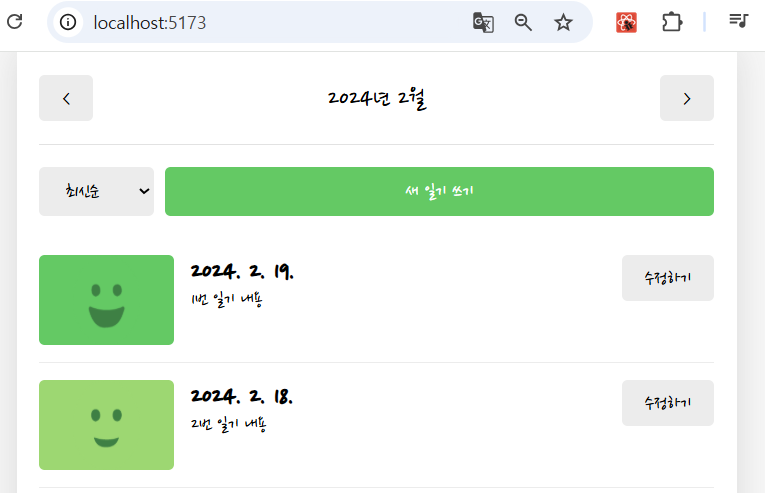
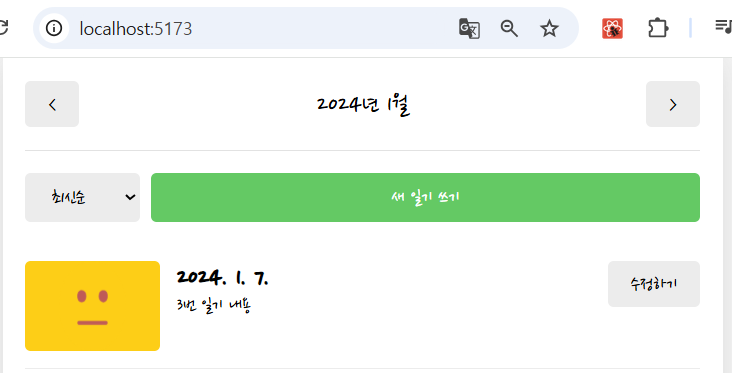
- pivotDate를 2024년 2월로 맞춰서 mockData가 있는 달의 일기가 보이게 했다.
- getMonthlyData 함수로 해당 달의 일기만 필터링해서 DiaryList에 넘긴다.
- 이전·다음 달 버튼으로 pivotDate를 바꿔 달을 이동할 수 있게 했다.
App.jsx
import Header from "../components/Header";
import Button from "../components/Button";
import DiaryList from "../components/DiaryList";
import { useState, useContext } from "react";
import { DiaryStateContext } from "../App";

const getMonthlyData = (pivotDate, data) => {
    const beginTime = new Date(
        pivotDate.getFullYear(),
        pivotDate.getMonth(),
        1,
        0,
        0,
        0
    ).getTime();

    const endTime = new Date(
        pivotDate.getFullYear(),
        pivotDate.getMonth() + 1,
        0,
        23,
        59,
        59
    ).getTime();

    return data.filter(
        (item) =>
            beginTime <= item.createdDate && item.createdDate <= endTime
    );
};

const Home = () => {
    const data = useContext(DiaryStateContext);
    const [pivotDate, setPivotDate] = useState(new Date("2024-02-01"));


    const monthlyData = getMonthlyData(pivotDate, data);

    const onIncreaseMonth = () => {
        setPivotDate(
            new Date(pivotDate.getFullYear(), pivotDate.getMonth() + 1)
        );
    };

    const onDecreaseMonth = () => {
        setPivotDate(
            new Date(pivotDate.getFullYear(), pivotDate.getMonth() - 1)
        );
    };

    return (
        <div>
            <Header
                title={`${pivotDate.getFullYear()}년 ${pivotDate.getMonth() + 1
                    }월`}
                leftChild={<Button onClick={onDecreaseMonth} text={"<"} />}
                rightChild={<Button onClick={onIncreaseMonth} text={">"} />}
            />
            <DiaryList data={monthlyData} />
        </div>
    );
};

export default Home;- pivotDate를 2024년 2월로 설정해 mockData가 포함된 달의 일기만 보이도록 했다.
- getMonthlyData로 해당 월(begin~end) 범위의 일기만 필터링한다.
- 이전/다음 달 버튼으로 pivotDate를 변경해 월 이동 기능을 구현했다.
DiaryList.jsx
import "./DiaryList.css";
import Button from "./Button";
import DiaryItem from "./DiaryItem";
import { useNavigate } from "react-router-dom";
import { useState } from "react";

const DiaryList = ({ data }) => {
    const nav = useNavigate();
    const [sortType, setSortType] = useState("latest");

    const onChangeSortType = (e) => {
        setSortType(e.target.value);
    };

    const getSortedData = () => {
        return data.toSorted((a, b) => {
            if (sortType === "oldest") {
                return Number(a.createdDate) - Number(b.createdDate);
            } else {
                return Number(b.createdDate) - Number(a.createdDate);
            }
        });
    };

    const sortedData = getSortedData();

    return (
        <div className="DiaryList">
            <div className="menu_bar">
                <select value={sortType} onChange={onChangeSortType}>
                    <option value={"latest"}>최신순</option>
                    <option value={"oldest"}>오래된 순</option>
                </select>
                <Button
                    onClick={() => nav("/new")}
                    text={"새 일기 쓰기"}
                    type={"POSITIVE"}
                />
            </div>
            <div className="list_wrapper">
                {sortedData.map((item) => (
                    <DiaryItem key={item.id} {...item} />
                ))}
            </div>
        </div>
    );
};

export default DiaryList;
- sortType(최신/오래된 순)을 기준으로 data를 toSorted()로 정렬한다.
- 정렬된 데이터를 DiaryItem에 props로 넘겨 일기 리스트를 렌더링한다.
- "새 일기 쓰기" 버튼을 누르면 /new 페이지로 이동한다.
Diaryitem.jsx
import { useNavigate } from "react-router-dom";
import { getEmotionImage } from "../util/get-emotion-image";
import Button from "./Button";
import "./DiaryItem.css";

const DiaryItem = ({ id, emotionId, createdDate, content }) => {
    const nav = useNavigate();

    const goDiaryPage = () => {
        nav(`/diary/${id}`);
    };

    const goEditPage = () => {
        nav(`/edit/${id}`);
    };

    return (
        <div className="DiaryItem">
            <div
                onClick={goDiaryPage}
                className={`img_section img_section_${emotionId}`}
            >
                <img src={getEmotionImage(emotionId)} />
            </div>
            <div onClick={goDiaryPage} className="info_section">
                <div className="created_date">
                    {new Date(createdDate).toLocaleDateString()}
                </div>
                <div className="content">{content}</div>
            </div>
            <div className="button_section">
                <Button onClick={goEditPage} text={"수정하기"} />
            </div>
        </div>
    );
};

export default DiaryItem;
- 클릭하면 해당 일기 상세 페이지(/diary/:id)로 이동하고, 수정 버튼을 누르면 /edit/:id로 이동한다.
- emotionId에 맞는 감정 이미지를 getEmotionImage()로 불러와 표시한다.
- 날짜와 내용은 props로 받은 createdDate, content로 화면에 렌더링한다.

실행화면입니다.
12.12) Home 페이지 구현하기 3. 회고
흐름정
App.jsx
import "./App.css";
import { useReducer, useRef, createContext } from "react";
import { Routes, Route } from "react-router-dom";
import Home from "./pages/Home";
import Diary from "./pages/Diary";
import New from "./pages/New";
import Edit from "./pages/Edit";
import Notfound from "./pages/Notfound";

const mockData = [
  {
    id: 1,
    createdDate: new Date("2024-02-19").getTime(),
    emotionId: 1,
    content: "1번 일기 내용",
  },
  {
    id: 2,
    createdDate: new Date("2024-02-18").getTime(),
    emotionId: 2,
    content: "2번 일기 내용",
  },
  {
    id: 3,
    createdDate: new Date("2024-01-07").getTime(),
    emotionId: 3,
    content: "3번 일기 내용",
  },
];

function reducer(state, action) {
  switch (action.type) {
    case "CREATE":
      return [action.data, ...state];
    case "UPDATE":
      return state.map((item) =>
        String(item.id) === String(action.data.id)
          ? action.data
          : item
      );
    case "DELETE":
      return state.filter(
        (item) => String(item.id) !== String(action.id)
      );
    default:
      return state;
  }
}

export const DiaryStateContext = createContext();
export const DiaryDispatchContext = createContext();

function App() {
  const [data, dispatch] = useReducer(reducer, mockData);
  const idRef = useRef(3);

  // 새로운 일기 추가
  const onCreate = (createdDate, emotionId, content) => {
    dispatch({
      type: "CREATE",
      data: {
        id: idRef.current++,
        createdDate,
        emotionId,
        content,
      },
    });
  };

  // 기존 일기 수정
  const onUpdate = (id, createdDate, emotionId, content) => {
    dispatch({
      type: "UPDATE",
      data: {
        id,
        createdDate,
        emotionId,
        content,
      },
    });
  };

  // 기존 일기 삭제
  const onDelete = (id) => {
    dispatch({
      type: "DELETE",
      id,
    });
  };

  return (
    <>
      <DiaryStateContext.Provider value={data}>
        <DiaryDispatchContext.Provider
          value={{
            onCreate,
            onUpdate,
            onDelete,
          }}
        >
          <Routes>
            <Route path="/" element={<Home />} />
            <Route path="/new" element={<New />} />
            <Route path="/diary/:id" element={<Diary />} />
            <Route path="/edit/:id" element={<Edit />} />
            <Route path="*" element={<Notfound />} />
          </Routes>
        </DiaryDispatchContext.Provider>
      </DiaryStateContext.Provider>
    </>
  );
}

export default App;
-일기 데이터를 보관하기위해서 우리가 앱 컴퍼넌트 안에 useReducer라는 리액트의 훅을 이용해서 새로운 스테이트를 데이터라는 이름으로 만들어주었습니다. 이 데이터 스테이트의 초기값으로는 목데이터를 사용했었습니다.
-일기데이터를 저장하는 이 데이터 스테이트를 굳이 우리가 앱 컴퍼넌트 안에다가 이렇게 만들어둔 이유는 이 데이터 스테이트에 보관이 될 일기 데이터들을 우리 모든 페이지에서 다 이용할 수가 있어야 되기 때문입니다.
-리턴문안쪽으로 내려가보면 이렇게 현재 모든 페이지 컴퍼넌트들의 부모역할을 하고 있는 우리앱 컴퍼넌트에다가 배치를 시켜준겁니다.
-왜냐하면 리액트에서는 컴포넌트 간의 데이터를 주고 받을때 props나 또는 컨텍스트를 이용해야 되는데 두가지 방법 모두 부모에서 자식 방향으로만 데이터를 전달할 수 있기 때문입니다.
-이러한 홈 컴퍼넌트와 뉴 컴포넌트, 다이어리 컴포넌트, 에딧 컴포넌트가 모두 공통적인 부모로 갖는 이 앱 컴퍼넌트에 데이터라는 일기 데이터를 저장하는 이러한 스테이트를 배치시켜준 것입니다.
-앱 컴퍼넌트에 배치되어 있는 이 데이터 스테이트를 이러한 페이지 역할 하는 컴퍼넌트들에게 공급해주기 위해서 이번에는 props가 아니라 context 활용했습니다.
-이때 우리가 context를 사용한 이유는 props 드릴링을 방지하기 위해서 그런것입니다.
-만약에 이때 컨텍스트를 이용하지 않고 예를 들어서 onCreate 같은 상태변화 함수들을 props로만 전달해준다고 하면 그때에는 앱 컴퍼넌트에서 실제로 데이터를 수정하게 될 에딧 컴포넌트에게 프롭스로 한번 전달을 합니다.
나중에 EditPageComponent에서 해당 함수를 또 실제로 또 데이터를 수정하는 이런 에디터같은 하위 컴퍼넌트에게 전달을 하고 프롭스가 계속해서 컴퍼넌트들을 파고드는 것 같은 이런 Props Drilling이라는 문제가 발생하기 때문에 컨텍스트를 이용해서 이렇게 한방에 보낼 수 있도록 처리를 해준것이라고 볼 수 있습니다.
-앱 컴퍼넌트에서는 다이어리 state context 라는 컨텍스트 객체를 통해서 이러한 일기 데이터를 모든 페이지에 공급을 해줬습니다.

Home.jsx
import Header from "../components/Header";
import Button from "../components/Button";
import DiaryList from "../components/DiaryList";
import { useState, useContext } from "react";
import { DiaryStateContext } from "../App";

const getMonthlyData = (pivotDate, data) => {
    const beginTime = new Date(
        pivotDate.getFullYear(),
        pivotDate.getMonth(),
        1,
        0,
        0,
        0
    ).getTime();

    const endTime = new Date(
        pivotDate.getFullYear(),
        pivotDate.getMonth() + 1,
        0,
        23,
        59,
        59
    ).getTime();

    return data.filter(
        (item) =>
            beginTime <= item.createdDate && item.createdDate <= endTime
    );
};

const Home = () => {
    const data = useContext(DiaryStateContext);
    const [pivotDate, setPivotDate] = useState(new Date("2024-02-01"));


    const monthlyData = getMonthlyData(pivotDate, data);

    const onIncreaseMonth = () => {
        setPivotDate(
            new Date(pivotDate.getFullYear(), pivotDate.getMonth() + 1)
        );
    };

    const onDecreaseMonth = () => {
        setPivotDate(
            new Date(pivotDate.getFullYear(), pivotDate.getMonth() - 1)
        );
    };

    return (
        <div>
            <Header
                title={`${pivotDate.getFullYear()}년 ${pivotDate.getMonth() + 1
                    }월`}
                leftChild={<Button onClick={onDecreaseMonth} text={"<"} />}
                rightChild={<Button onClick={onIncreaseMonth} text={">"} />}
            />
            <DiaryList data={monthlyData} />
        </div>
    );
};

export default Home;
-홈 컴퍼넌트에서 유즈 컨텍스트를 통해서 다이어리 스테이트 컨텍스트가 공급하는 일기데이터를 꺼내 올 수 있었습니다.
-헤더 영역과 다이어리 리스트 영역으로 나뉘어져 있는 이런 홈페이지를 구현하기 위해서 이렇게 헤더 컴퍼넌트를 상단에 배치해 두었습니다. 그리고 레프트 차일드와 라이트 차일드로 우리가 앞서 만들어준 버튼 컴포넌트를 활용했었습니다.
-그리고 홈페이지의 헤더는 헤더의 양쪽 버튼을 클릭했을때 가운데 렌더링 되는 날짜를 월단위로 한달씩 이동을 시켜줬어야 됐습니다, 이 기능을 구현하기 위해서 월단위로 변경되는 이 날짜 데이터를 저장하기 위해서 우리 홈 컴퍼넌트 안에 이렇게 pivotDate라는 새로운 스테이트를 만들어 주었습니다. 이 스테이트의 값을 헤더의 버튼이 클릭될때마다 onIncreaseMonth나 또는 onDecreaseMonth 함수를 통해서 값을 한달씩 뒤로 미루거나 또는 한달전으로 떙겨주는 이런 기능을 만들어 보았습니다.
-그리고 홈 컴퍼넌트에서는 PivotDateState에 저장된 날짜를 기준으로 컨텍스트로부터 받아온 일기데이터를 월별로 필터링해줬어야했는데 GetMonthlyDate 같은 함수를 이 컴퍼넌트 바깥에 만들어서 이 PivotDate 값을 기준으로 현재의 데이터 스테이트로부터 이번달에 해당하는 일기 데이터만 필터링해서 반환하도록 설정해줬습니다.
-디테일하게는 이번달의 시작 시간과 마지막 시간을 각각 타임스탬프 형태로 계산을 해서 일기 데이터들 중에 아이템이 생성된 아이템의 크리에이티드 데이트 시간이 시작시간 이상이면서 동시에 마지막 시간 이하로 설정이 되어있는 이달의 일기 데이터들만 필터링하도록 설정을 해두었습니다.
DiaryList.jsx
import "./DiaryList.css";
import Button from "./Button";
import DiaryItem from "./DiaryItem";
import { useNavigate } from "react-router-dom";
import { useState } from "react";

const DiaryList = ({ data }) => {
    const nav = useNavigate();
    const [sortType, setSortType] = useState("latest");

    const onChangeSortType = (e) => {
        setSortType(e.target.value);
    };

    const getSortedData = () => {
        return data.toSorted((a, b) => {
            if (sortType === "oldest") {
                return Number(a.createdDate) - Number(b.createdDate);
            } else {
                return Number(b.createdDate) - Number(a.createdDate);
            }
        });
    };

    const sortedData = getSortedData();

    return (
        <div className="DiaryList">
            <div className="menu_bar">
                <select value={sortType} onChange={onChangeSortType}>
                    <option value={"latest"}>최신순</option>
                    <option value={"oldest"}>오래된 순</option>
                </select>
                <Button
                    onClick={() => nav("/new")}
                    text={"새 일기 쓰기"}
                    type={"POSITIVE"}
                />
            </div>
            <div className="list_wrapper">
                {sortedData.map((item) => (
                    <DiaryItem key={item.id} {...item} />
                ))}
            </div>
        </div>
    );
};

export default DiaryList;
-컴퍼넌트에서는 우리가 홈컴퍼넌트에서 props로 넘겨준 monthlyData를 데이터라는 이름으로 받아왔습니다.
-다양한 컴퍼넌트 내부의 로직을 거쳐서 일기데이터를 실제로 화면에 리스트 형태로 렌더링 시켜주는 기능을 하고 있습니다.
이때 어떠한 내부적인 로직을 거쳐서 렌더링 시켜주고 있느냐라고 하면 먼저 이 다이어리 리스트 컴퍼넌트는 리턴문 안쪽을 보면 두가지 섹션으로 나뉘어져있습니다.
- 첫번째로 이렇게 정렬 필터나 새로운 일기를 쓰는 버튼이 있는 메뉴바 섹션이 존재했고, 두번쨰로는 실제일기들이 리스트로 렌더링이 되는 이러한 리스트 섹션이 있었습니다.
-메뉴바 섹션부터 보면 이 메뉴바 섹션 안에는 셀렉트 태그로 만든 정렬 필터가 존재해서 사용자가 브라우저에서 정렬의기준을 최신순이나 오래된순으로 직접 바꿀 수도 있습니다.
-이렇게바뀐 정렬기준은 이 SELECT 태그의 onChange 이벤트 핸들러를 통해서 이런 SORT TYPE이라는 STATE에 보관이 되도록 설정해 주었습니다.
-정렬기준을 토대로 일기 데이터를 실제로 정렬시켜주는 GET SORTED DATA라는 함수도 만들어 주었습니다.
12.13) New 페이지 구현하기 1. UI
New.jsx
import Header from "../components/Header";
import Button from "../components/Button";
import Editor from "../components/Editor";

const New = () => {
    return (
        <div>
            <Header
                title={"새 일기 쓰기"}
                leftChild={<Button text={"< 뒤로 가기"} />}
            />
            <Editor />
        </div>
    );
};

export default New;
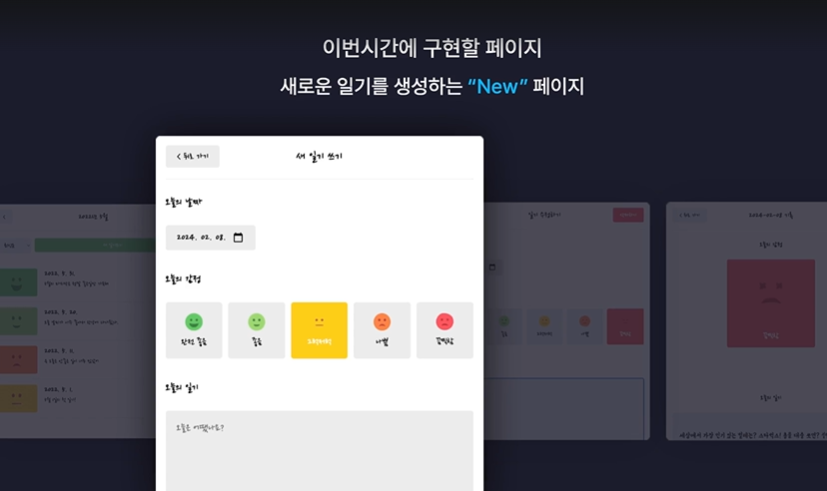
- Header에 "새 일기 쓰기" 제목과 “〈 뒤로 가기” 버튼을 표시한다.
- 아래에 Editor 컴포넌트를 렌더링하여 일기 작성 UI를 제공한다.
- 전체적으로 새 일기를 작성하는 페이지 구조를 구성한다.
Editor.jsx
import "./Editor.css";
import EmotionItem from "./EmotionItem";
import Button from "./Button";

const emotionList = [
    {
        emotionId: 1,
        emotionName: "완전 좋음",
    },
    {
        emotionId: 2,
        emotionName: "좋음",
    },
    {
        emotionId: 3,
        emotionName: "그럭저럭",
    },
    {
        emotionId: 4,
        emotionName: "나쁨",
    },
    {
        emotionId: 5,
        emotionName: "끔찍함",
    },
];

const Editor = () => {
    const emotionId = 5;

    return (
        <div className="Editor">
            <section className="date_section">
                <h4>오늘의 날짜</h4>
                <input type="date" />
            </section>
            <section className="emotion_section">
                <h4>오늘의 감정</h4>
                <div className="emotion_list_wrapper">
                    {emotionList.map((item) => (
                        <EmotionItem
                            key={item.emotionId}
                            {...item}
                            isSelected={item.emotionId === emotionId}
                        />
                    ))}
                </div>
            </section>
            <section className="content_section">
                <h4>오늘의 일기</h4>
                <textarea placeholder="오늘은 어땠나요?" />
            </section>
            <section className="button_section">
                <Button text={"취소하기"} />
                <Button text={"작성완료"} type={"POSITIVE"} />
            </section>
        </div>
    );
};

export default Editor;
- 날짜 입력, 감정 선택, 일기 내용을 입력하는 일기 작성 UI 전체를 제공하는 컴포넌트다.
- 감정 리스트를 EmotionItem으로 반복 렌더링하고, emotionId === 5인 감정을 기본 선택 상태로 표시한다.
- “취소하기 / 작성완료” 두 버튼으로 작성 액션을 마무리하게 만든다.
Editor.css
.Editor>section {
    margin-bottom: 40px;
}

.Editor>section>h4 {
    font-size: 22px;
    font-weight: bold;
}

.Editor>section>input,
textarea {
    background-color: rgb(236, 236, 236);
    border: none;
    border-radius: 5px;
    font-size: 20px;
    padding: 10px 20px;
}

.Editor>section>textarea {
    padding: 20px;
    width: 100%;
    min-height: 200px;
    resize: vertical;
    box-sizing: border-box;
}

.Editor .emotion_section .emotion_list_wrapper {
    display: flex;
    justify-content: space-around;
    gap: 2%;
}

.Editor .button_section {
    display: flex;
    justify-content: space-between;
}
- 각 section 간 간격(40px)과 제목(h4)의 크기·굵기를 지정해 일기 작성 페이지의 기본 레이아웃을 잡아준다.
- 날짜 입력창/textarea 배경을 연한 회색으로 하고, 테두리를 없애며 padding과 폰트 크기를 조정해 입력 UI를 보기 좋게 만든다.
- 감정 선택 영역은 flex로 가로 배치하고, 버튼 영역은 양쪽 끝으로 정렬해 전체 UI가 균형 잡혀 보이도록 스타일링한다.
EmotionItem.jsx
import "./EmotionItem.css";
import { getEmotionImage } from "../util/get-emotion-image";

const EmotionItem = ({ emotionId, emotionName, isSelected }) => {
    return (
        <div
            className={`EmotionItem ${isSelected ? `EmotionItem_on_${emotionId}` : ""
                }`}
        >
            <img className="emotion_img" src={getEmotionImage(emotionId)} />
            <div className="emotion_name">{emotionName}</div>
        </div>
    );
};

export default EmotionItem;
- 감정 이미지와 감정 이름을 하나의 카드 형태로 렌더링하는 단일 감정 선택 컴포넌트다.
- isSelected가 true이면 EmotionItem_on_감정ID 클래스를 붙여서 선택된 감정만 스타일 강조가 된다.
- 감정별 이미지는 getEmotionImage(emotionId)로 가져와 표시한다.
EmotionItem.css
.EmotionItem {
    background-color: rgb(236, 236, 236);
    padding: 20px;
    border-radius: 5px;
    cursor: pointer;
    text-align: center;
}

.EmotionItem .emotion_img {
    width: 50%;
    margin-bottom: 10px;
}

.EmotionItem_on_1 {
    color: white;
    background-color: rgb(100, 201, 100);
}

.EmotionItem_on_2 {
    color: white;
    background-color: rgb(157, 215, 114);
}

.EmotionItem_on_3 {
    color: white;
    background-color: rgb(253, 206, 23);
}

.EmotionItem_on_4 {
    color: white;
    background-color: rgb(253, 132, 70);
}

.EmotionItem_on_5 {
    color: white;
    background-color: rgb(253, 86, 95);
}- 기본 EmotionItem은 연한 회색 배경, 가운데 정렬, 패딩과 라운드 처리로 카드형 감정 버튼 UI를 만든다.
- 선택된 감정(EmotionItem_on_X)은 감정 ID별로 다른 배경색을 적용해 시각적으로 강하게 강조한다.
- 감정 이미지는 width 50%로 설정해 카드 안에서 적당한 크기로 균형 있게 표시된다.

실행화면입니다.
12.14) New 페이지 구현하기 2. 기능
New.jsx
import Header from "../components/Header";
import Button from "../components/Button";
import Editor from "../components/Editor";
import { useNavigate } from "react-router-dom";
import { useContext } from "react";
import { DiaryDispatchContext } from "../App";

const New = () => {
    const { onCreate } = useContext(DiaryDispatchContext);
    const nav = useNavigate();

    const onSubmit = (input) => {
        onCreate(
            input.createdDate.getTime(),
            input.emotionId,
            input.content
        );
        nav("/", { replace: true });
    };

    return (
        <div>
            <Header
                title={"새 일기 쓰기"}
                leftChild={
                    <Button onClick={() => nav(-1)} text={"< 뒤로 가기"} />
                }
            />
            <Editor onSubmit={onSubmit} />
        </div>
    );
};

export default New;
- DiaryDispatchContext에서 onCreate 함수를 받아와 Editor에서 입력된 내용을 실제 일기로 저장한다.
- Editor에서 전달한 input 값(날짜·감정·내용)을 onSubmit에서 처리해 onCreate(...) 호출 후 홈으로 리다이렉트한다.
- Header의 “뒤로 가기” 버튼은 nav(-1)로 이전 페이지로 이동하고, Editor는 onSubmit을 props로 전달받아 작성 완료 시 실행한다.
Editor.jsx
import "./Editor.css";
import EmotionItem from "./EmotionItem";
import Button from "./Button";
import { useState } from "react";
import { useNavigate } from "react-router-dom";

const emotionList = [
    {
        emotionId: 1,
        emotionName: "완전 좋음",
    },
    {
        emotionId: 2,
        emotionName: "좋음",
    },
    {
        emotionId: 3,
        emotionName: "그럭저럭",
    },
    {
        emotionId: 4,
        emotionName: "나쁨",
    },
    {
        emotionId: 5,
        emotionName: "끔찍함",
    },
];

const getStringedDate = (targetDate) => {
    // yyyy-mm-dd
    let year = targetDate.getFullYear();
    let month = targetDate.getMonth() + 1;
    let date = targetDate.getDate();

    if (month < 10) {
        month = `0${month}`;
    }
    if (date < 10) {
        date = `0${date}`;
    }

    return `${year}-${month}-${date}`;
};

const Editor = ({ onSubmit }) => {
    const [input, setInput] = useState({
        createdDate: new Date(),
        emotionId: 3,
        content: "",
    });
    const nav = useNavigate();

    const onChangeInput = (e) => {
        let name = e.target.name;
        let value = e.target.value;

        if (name === "createdDate") {
            value = new Date(value);
        }

        setInput({
            ...input,
            [name]: value,
        });
    };

    const onSubmitButtonClick = () => {
        onSubmit(input);
    };

    return (
        <div className="Editor">
            <section className="date_section">
                <h4>오늘의 날짜</h4>
                <input
                    name="createdDate"
                    onChange={onChangeInput}
                    value={getStringedDate(input.createdDate)}
                    type="date"
                />
            </section>
            <section className="emotion_section">
                <h4>오늘의 감정</h4>
                <div className="emotion_list_wrapper">
                    {emotionList.map((item) => (
                        <EmotionItem
                            onClick={() =>
                                onChangeInput({
                                    target: {
                                        name: "emotionId",
                                        value: item.emotionId,
                                    },
                                })
                            }
                            key={item.emotionId}
                            {...item}
                            isSelected={item.emotionId === input.emotionId}
                        />
                    ))}
                </div>
            </section>
            <section className="content_section">
                <h4>오늘의 일기</h4>
                <textarea
                    name="content"
                    onChange={onChangeInput}
                    placeholder="오늘은 어땠나요?"
                />
            </section>
            <section className="button_section">
                <Button onClick={() => nav(-1)} text={"취소하기"} />
                <Button
                    onClick={onSubmitButtonClick}
                    text={"작성완료"}
                    type={"POSITIVE"}
                />
            </section>
        </div>
    );
};

export default Editor;
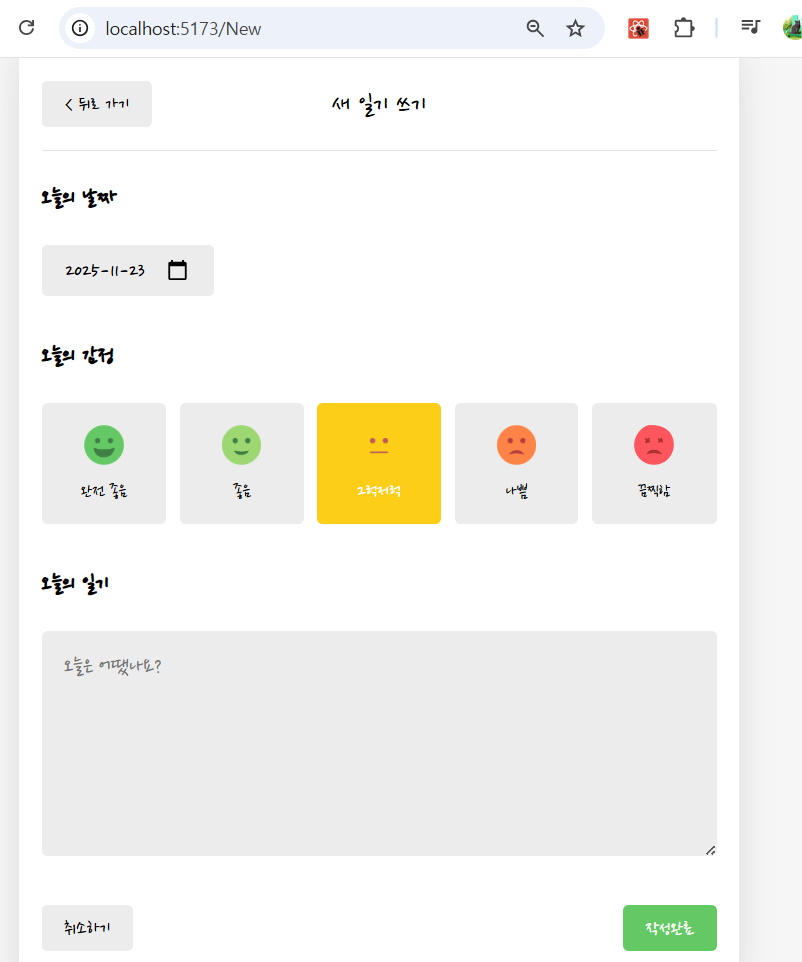
- 날짜, 감정, 내용 세 가지 입력값을 input 상태로 관리하고 변경될 때마다 onChangeInput으로 업데이트한다.
- EmotionItem 클릭 시 emotionId가 바뀌고, “작성완료” 버튼을 누르면 부모에게 onSubmit(input)을 전달한다.
- 날짜는 yyyy-mm-dd 형식으로 보여주기 위해 getStringedDate()를 사용하며, “취소하기”는 뒤로가기(nav(-1))로 처리한다.
EmotionItem.jsx
import "./EmotionItem.css";
import { getEmotionImage } from "../util/get-emotion-image";

const EmotionItem = ({
    emotionId,
    emotionName,
    isSelected,
    onClick,
}) => {
    return (
        <div
            onClick={onClick}
            className={`EmotionItem ${isSelected ? `EmotionItem_on_${emotionId}` : ""
                }`}
        >
            <img className="emotion_img" src={getEmotionImage(emotionId)} />
            <div className="emotion_name">{emotionName}</div>
        </div>
    );
};

export default EmotionItem;
- 감정 카드 클릭 시 onClick을 실행하여 부모(Editor)에게 선택된 감정을 전달한다.
- 선택된 감정이면 EmotionItem_on_감정ID 클래스를 적용해 강조 스타일을 준다.
- 감정 이미지와 이름을 표시하며, 데이터는 emotionId / emotionName / isSelected 로 구성된다.
App.jsx
import "./App.css";
import { useReducer, useRef, createContext } from "react";
import { Routes, Route } from "react-router-dom";
import Home from "./pages/Home";
import Diary from "./pages/Diary";
import New from "./pages/New";
import Edit from "./pages/Edit";
import Notfound from "./pages/Notfound";

const mockData = [
  {
    id: 1,
    createdDate: new Date("2024-02-19").getTime(),
    emotionId: 1,
    content: "1번 일기 내용",
  },
  {
    id: 2,
    createdDate: new Date("2024-02-18").getTime(),
    emotionId: 2,
    content: "2번 일기 내용",
  },
  {
    id: 3,
    createdDate: new Date("2024-01-07").getTime(),
    emotionId: 3,
    content: "3번 일기 내용",
  },
];

function reducer(state, action) {
  switch (action.type) {
    case "CREATE":
      return [action.data, ...state];
    case "UPDATE":
      return state.map((item) =>
        String(item.id) === String(action.data.id)
          ? action.data
          : item
      );
    case "DELETE":
      return state.filter(
        (item) => String(item.id) !== String(action.id)
      );
    default:
      return state;
  }
}

export const DiaryStateContext = createContext();
export const DiaryDispatchContext = createContext();

function App() {
  const [data, dispatch] = useReducer(reducer, mockData);
  const idRef = useRef(3);

  // 새로운 일기 추가
  const onCreate = (createdDate, emotionId, content) => {
    dispatch({
      type: "CREATE",
      data: {
        id: idRef.current++,
        createdDate,
        emotionId,
        content,
      },
    });
  };

  // 기존 일기 수정
  const onUpdate = (id, createdDate, emotionId, content) => {
    dispatch({
      type: "UPDATE",
      data: {
        id,
        createdDate,
        emotionId,
        content,
      },
    });
  };

  // 기존 일기 삭제
  const onDelete = (id) => {
    dispatch({
      type: "DELETE",
      id,
    });
  };

  return (
    <>
      <DiaryStateContext.Provider value={data}>
        <DiaryDispatchContext.Provider
          value={{
            onCreate,
            onUpdate,
            onDelete,
          }}
        >
          <Routes>
            <Route path="/" element={<Home />} />
            <Route path="/new" element={<New />} />
            <Route path="/diary/:id" element={<Diary />} />
            <Route path="/edit/:id" element={<Edit />} />
            <Route path="*" element={<Notfound />} />
          </Routes>
        </DiaryDispatchContext.Provider>
      </DiaryStateContext.Provider>
    </>
  );
}

export default App;- useReducer로 일기 CRUD 상태(data)를 관리하고, DiaryStateContext와 DiaryDispatchContext로 전역 공유한다.
- onCreate, onUpdate, onDelete를 context로 제공해 모든 페이지(Home, New, Edit, Diary)가 일기 데이터를 변경할 수 있게 한다.
- Routes를 사용해 메인 화면, 작성 화면, 상세 화면, 수정 화면, NotFound 페이지를 라우팅한다.
실행화면입니다.