12.2) 페이지 라우팅
-경로에 따라 알맞은 페이지를 렌더링 하는 과정 ex) /new -> new 페이지 렌더링
- 사용자가 /home, /about 같은 경로로 이동
- 라우터(router)가 그 주소를 감지
- 해당 경로에 맞는 컴포넌트(페이지)를 화면에 표시!
- 실제로는 전체 페이지를 새로 불러오지 않고 화면 일부만 교체하는 SPA 방식으로 동작
- React Router, Vue Router 같은 라이브러리가 이 기능을 제공
- Multi Page Application(MPA)
- MPA(멀티 페이지 애플리케이션)은 여러 개의 페이지로 구성된 전통적인 웹 방식입니다.
- 사용자가 페이지를 이동할 때마다 서버가 새로운 HTML 페이지를 전송합니다.
- 각 페이지는 독립적으로 서버에 요청되고 새로 고침이 일어납니다.
- 초기에 서버가 여러 페이지를 모두 가지고 있으며,
- 많은 기존 웹 서비스들이 이 전통적인 구조를 사용합니다.

- 페이지를 이동할 때마다 전체 페이지가 새로 로드되기 때문에 매끄럽지 않습니다.
- 불필요한 리소스를 계속 다운로드해서 비효율적입니다.
- 많은 사용자가 동시에 접속하면 서버에 부하가 크게 걸립니다.

- 한 번만 페이지를 로드하고, 그 이후에는 화면 일부만 업데이트하기 때문에
페이지 이동이 매우 매끄럽고 빠릅니다. - 불필요한 전체 새로고침이 없어서 효율적이며 리소스 절약이 됩니다.
- 대부분의 작업이 브라우저(클라이언트)에서 처리되기 때문에
많은 사용자가 접속해도 서버 부하가 크게 증가하지 않습니다.
12.3) 페이지 라우팅 2. 라우팅 설정하기

- npmjs.com에 등록된 공식 라이브러리입니다.
- 대부분의 리액트 프로젝트에서 사용하는 대표적인 라우팅 라이브러리예요.
App.jsx
import "./App.css";
import { Routes, Route } from "react-router-dom";
import Home from "./pages/Home";
import Diary from "./pages/Diary";
import New from "./pages/New";
import Notfound from "./pages/Notfound";

// 1. "/" : 모든 일기를 조회하는 Home 페이지
// 2. "/new" : 새로운 일기를 작성하는 New 페이지
// 3. "/diary" : 일기를 상세히 조회하는 Diary 페이지
function App() {
  return (
    <>
      <div>Hello</div>
      <Routes>
        <Route path="/" element={<Home />} />
        <Route path="/new" element={<New />} />
        <Route path="/diary" element={<Diary />} />
        <Route path="*" element={<Notfound />} />
      </Routes>
    </>
  );
}

export default App;
- react-router-dom을 이용해 여러 페이지(Home, New, Diary, Notfound)를 라우팅합니다.
- / 경로에서 Home 페이지를 보여줍니다.
- /new 경로에서 New 페이지를 렌더링합니다.
- /diary 경로에서 Diary 페이지를 보여줍니다.
- 어떤 경로와도 맞지 않으면 * 경로로 Notfound 페이지를 띄웁니다.
Diary.jsx
const Diary = () => {
    return <div>Diary</div>;
};

export default Diary;
Home.jsx
const Home = () => {
    return <div>Home</div>;
};

export default Home;
New.jsx
const New = () => {
    return <div>New</div>;
};

export default New;
Notfound.jsx
const Notfound = () => {
    return <div>잘못된 페이지입니다.</div>;
};

export default Notfound;
12.4) 페이지 라우팅 3. 페이지 이동
App.jsx
import "./App.css";
import {
  Routes,
  Route,
  Link,
  useNavigate,
} from "react-router-dom";
import Home from "./pages/Home";
import Diary from "./pages/Diary";
import New from "./pages/New";
import Notfound from "./pages/Notfound";

// 1. "/" : 모든 일기를 조회하는 Home 페이지
// 2. "/new" : 새로운 일기를 작성하는 New 페이지
// 3. "/diary" : 일기를 상세히 조회하는 Diary 페이지
function App() {
  const nav = useNavigate();

  const onClickButton = () => {
    nav("/new");
  };

  return (
    <>
      <div>
        <Link to={"/"}>Home</Link>
        <Link to={"/new"}>New</Link>
        <Link to={"/diary"}>Diary</Link>
      </div>
      <button onClick={onClickButton}>
        New 페이지로 이동
      </button>
      <Routes>
        <Route path="/" element={<Home />} />
        <Route path="/new" element={<New />} />
        <Route path="/diary" element={<Diary />} />
        <Route path="*" element={<Notfound />} />
      </Routes>
    </>
  );
}

export default App;
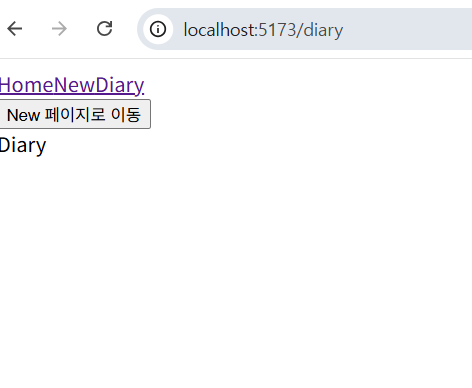
- Link 컴포넌트를 사용해서 Home / New / Diary로 이동할 수 있는 네비게이션 메뉴를 만듭니다.
→ 클릭 시 페이지 새로고침 없이 화면만 바뀌는 SPA 방식으로 이동합니다. - useNavigate 훅을 사용해서 자바스크립트 코드 내부에서 페이지 이동을 제어합니다.
→ onClickButton 함수가 실행되면 nav("/new")로 이동합니다. - <Routes> 안에는 각 경로별로 어떤 컴포넌트를 보여줄지 설정합니다.
→ / → Home, /new → New, /diary → Diary, 그 외 → Notfound 페이지가 렌더링됩니다. - 버튼 클릭이나 링크 클릭 모두 라우터를 통해 이동하므로 새로고침이 발생하지 않습니다.
- 즉, 이 코드는 리액트에서 가장 기본적인 라우팅 구조와 이동 방식(useNavigate + Link)을 모두 포함한 예시입니다.
12.5) 페이지 라우팅 4. 동적 경로
Diary.jsx
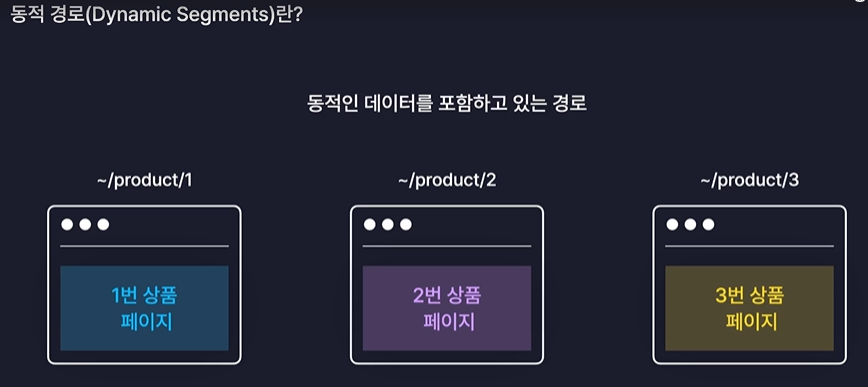
import { useParams } from "react-router-dom";

const Diary = () => {
    const params = useParams();
    console.log(params);

    return <div>{params.id}번 일기입니다 ~~</div>;
};

export default Diary;
Home.jsx
import { useSearchParams } from "react-router-dom";

const Home = () => {
    const [params, setParams] = useSearchParams();
    console.log(params.get("value"));

    return <div>Home</div>;
};

export default Home;
- useSearchParams()는 URL에서 ?key=value 형태로 붙는 쿼리값을 읽고 수정할 수 있는 훅입니다.
- const [params, setParams] = useSearchParams();
→ params : 현재 URL의 쿼리 정보를 가져오는 객체
→ setParams : 쿼리 값을 변경할 때 사용하는 함수 - params.get("value")
→ URL에 ?value=123 이런 식으로 붙어 있다면
콘솔에 123이 출력됩니다.
출력화면:

12.6) 폰트, 이미지, 레이아웃 설정하기
폰트,이미지 파일 다운로드하기
index.css
@font-face {
    font-family: "NanumPenScript";
    src: url("/NanumPenScript-Regular.ttf");
}

html,
body {
    margin: 0px;
    width: 100%;
    background-color: rgb(246, 246, 246);
}

#root {
    background-color: white;
    max-width: 600px;
    width: 100%;
    margin: 0 auto;
    min-height: 100vh;
    height: 100%;
    box-shadow: rgba(100, 100, 100, 0.2) 0px 0px 29px 0px;
}

body * {
    font-family: "NanumPenScript";
}
- 웹폰트 NanumPenScript를 프로젝트에 직접 불러옵니다.
- html, body의 여백을 제거하고 밝은 회색 배경을 설정합니다.
- #root는 중앙 정렬된 흰색 박스로, 최대 너비 600px과 그림자 효과를 줍니다.
- 전체 높이를 화면에 맞추고 스크롤 시 균형 있게 보이도록 구성합니다.
- 모든 요소에 "NanumPenScript" 폰트를 적용해 통일된 디자인을 만듭니다.
App.jsx
import "./App.css";
import {
  Routes,
  Route,
  Link,
  useNavigate,
} from "react-router-dom";
import Home from "./pages/Home";
import Diary from "./pages/Diary";
import New from "./pages/New";
import Notfound from "./pages/Notfound";

import { getEmotionImage } from "./util/get-emotion-image";

// 1. "/" : 모든 일기를 조회하는 Home 페이지
// 2. "/new" : 새로운 일기를 작성하는 New 페이지
// 3. "/diary" : 일기를 상세히 조회하는 Diary 페이지
function App() {
  const nav = useNavigate();

  const onClickButton = () => {
    nav("/new");
  };

  return (
    <>
      <div>
        <img src={getEmotionImage(1)} />
        <img src={getEmotionImage(2)} />
        <img src={getEmotionImage(3)} />
        <img src={getEmotionImage(4)} />
        <img src={getEmotionImage(5)} />
      </div>

      <div>
        <Link to={"/"}>Home</Link>
        <Link to={"/new"}>New</Link>
        <Link to={"/diary"}>Diary</Link>
      </div>
      <button onClick={onClickButton}>
        New 페이지로 이동
      </button>
      <Routes>
        <Route path="/" element={<Home />} />
        <Route path="/new" element={<New />} />
        <Route path="/diary/:id" element={<Diary />} />
        <Route path="*" element={<Notfound />} />
      </Routes>
    </>
  );
}

export default App;
ChatGPT의 말:
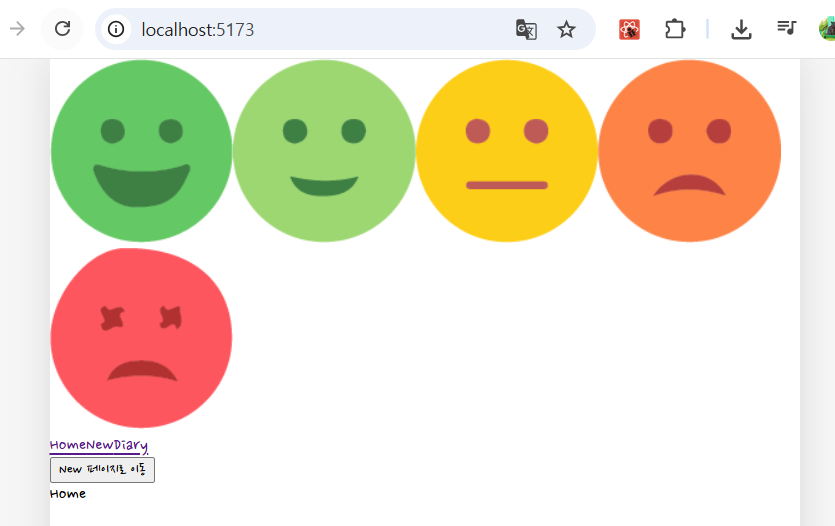
- getEmotionImage 함수를 추가해 감정별 이미지(1~5)를 화면에 표시합니다.
- 이미지 파일(emotion1~5.png)을 assets 폴더에서 불러와 렌더링합니다.
- /diary 경로가 /diary/:id로 바뀌어, 각 일기의 고유 id를 전달할 수 있습니다.
get-emotion-image.js
import emotion1 from "./../assets/emotion1.png";
import emotion2 from "./../assets/emotion2.png";
import emotion3 from "./../assets/emotion3.png";
import emotion4 from "./../assets/emotion4.png";
import emotion5 from "./../assets/emotion5.png";

export function getEmotionImage(emotionId) {
    switch (emotionId) {
        case 1:
            return emotion1;
        case 2:
            return emotion2;
        case 3:
            return emotion3;
        case 4:
            return emotion4;
        case 5:
            return emotion5;
        default:
            return null;
    }
}
- emotion1~emotion5 이미지를 assets 폴더에서 불러온다.
- getEmotionImage 함수는 emotionId(1~5)를 입력값으로 받는다.
- switch문으로 emotionId 값에 따라 해당 이미지를 선택한다.
- 1~5 중 하나면 대응되는 emotion 이미지 경로를 return 한다.
- 해당되지 않으면 기본값(null)을 반환한다.
실행화면
12.7) 공통 컴포넌트 구현하기
Button.jsx
import "./Button.css";

const Button = ({ text, type, onClick }) => {
  return (
    <button
      onClick={onClick}
      className={`Button Button_${type}`}
    >
      {text}
    </button>
  );
};

export default Button;- Button.css를 불러와 버튼 스타일을 적용한다.
- Button은 text, type, onClick을 props로 받는 컴포넌트다.
- 버튼 클릭 시 onClick 함수가 실행된다.
- className은 Button과 Button_타입 두 클래스를 동시에 적용한다.
- 버튼 안에는 전달받은 text가 표시된다.
Button.css
.Button {
  background-color: rgb(236, 236, 236);
  cursor: pointer;
  border: none;
  border-radius: 5px;
  padding: 10px 20px;
  font-size: 18px;
  white-space: nowrap;
}

.Button_POSITIVE {
  background-color: rgb(100, 201, 100);
  color: white;
}

.Button_NEGATIVE {
  background-color: rgb(253, 86, 95);
  color: white;
}
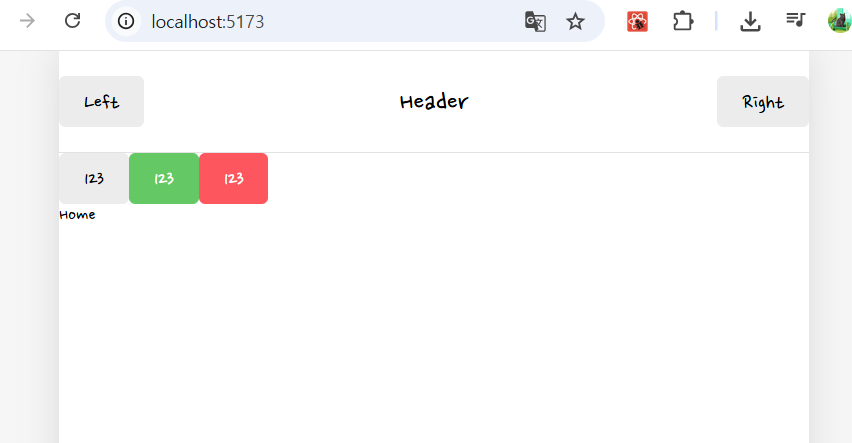
POSITIVE는 초록색, NEGATIVE는 빨간색 배경으로 표시된다.
Header.css
.Header {
  display: flex;
  align-items: center;

  padding: 20px 0px;
  border-bottom: 1px solid rgb(226, 226, 226);
}

.Header > div {
  display: flex;
}

.Header .header_center {
  width: 50%;
  font-size: 25px;
  justify-content: center;
}

.Header .header_left {
  width: 25%;
  justify-content: flex-start;
}

.Header .header_right {
  width: 25%;
  justify-content: flex-end;
}
- 헤더를 가로로 배치하고 중앙 정렬, 아래쪽에 얇은 회색 경계선을 둔다.
- 왼쪽·가운데·오른쪽 영역을 각각 25%·50%·25% 비율로 나눠 정렬한다.
Header.jsx
import "./Header.css";

const Header = ({ title, leftChild, rightChild }) => {
  return (
    <header className="Header">
      <div className="header_left">{leftChild}</div>
      <div className="header_center">{title}</div>
      <div className="header_right">{rightChild}</div>
    </header>
  );
};

export default Header;
- 헤더는 왼쪽·가운데·오른쪽 영역으로 구성되며 각각 컴포넌트/텍스트를 넣을 수 있다.
- title, leftChild, rightChild를 받아 해당 위치에 렌더링한다.
App.jsx
import "./App.css";
import {
  Routes,
  Route,
  Link,
  useNavigate,
} from "react-router-dom";
import Home from "./pages/Home";
import Diary from "./pages/Diary";
import New from "./pages/New";
import Notfound from "./pages/Notfound";
import Button from "./components/Button";
import Header from "./components/Header";

import { getEmotionImage } from "./util/get-emotion-image";

// 1. "/" : 모든 일기를 조회하는 Home 페이지
// 2. "/new" : 새로운 일기를 작성하는 New 페이지
// 3. "/diary" : 일기를 상세히 조회하는 Diary 페이지
function App() {
  const nav = useNavigate();

  const onClickButton = () => {
    nav("/new");
  };

  return (
    <>
      <Header
        title={"Header"}
        leftChild={<Button text={"Left"} />}
        rightChild={<Button text={"Right"} />}
      />

      <Button
        text={"123"}
        onClick={() => {
          console.log("123번 버튼 클릭!");
        }}
      />

      <Button
        text={"123"}
        type={"POSITIVE"}
        onClick={() => {
          console.log("123번 버튼 클릭!");
        }}
      />

      <Button
        text={"123"}
        type={"NEGATIVE"}
        onClick={() => {
          console.log("123번 버튼 클릭!");
        }}
      />

      <Routes>
        <Route path="/" element={<Home />} />
        <Route path="/new" element={<New />} />
        <Route path="/diary/:id" element={<Diary />} />
        <Route path="*" element={<Notfound />} />
      </Routes>
    </>
  );
}

export default App;
- Header 컴포넌트를 추가해 상단 공통 영역(Left/Title/Right 버튼)을 표시함.
- Button 컴포넌트를 기본/긍정/부정 타입으로 세 가지 예시로 렌더링함.
- useNavigate를 사용해 페이지 이동 기능(nav("/new"))을 구현함.
- 여러 버튼에 각각 다른 onClick 동작을 연결해 콘솔 출력 테스트를 추가함.
- 전체 라우팅 구조는 유지되었지만, 공통 UI 요소(Header + Buttons)가 라우트 위에 렌더링됨.
실행화면
12.8) 일기 관리 기능 구현하기 1

1. home: 일기 리스트 렌더링
2. diary: 일기 상세 조회
3. new: 새로운 일기 작성
4. edit:기존 일기 수정

- App 컴포넌트가 모든 일기 데이터(todo state)를 관리하되, Context를 통해 하위 컴포넌트로 전달함.
- Context는 중앙 저장소 역할을 하며, Home, Diary, New, Edit이 데이터를 쉽게 공유할 수 있게 함.
- props로 일일이 전달할 필요 없이, 모든 하위 컴포넌트가 Context를 통해 같은 state에 접근 가능.
- 데이터 수정(작성/수정/삭제) 시 Context의 상태가 바뀌고, 연결된 컴포넌트들이 자동으로 갱신됨.
- 결과적으로 코드가 간결해지고, 상태 전달 구조가 훨씬 효율적이고 유지보수가 쉬워짐.
-까먹었던 edit 페이지 추가!
Edit.jsx
import { useParams } from "react-router-dom";

const Edit = () => {
  const params = useParams();
  return <div>{params.id}번 일기 수정페이지입니다</div>;
};

export default Edit;
- Edit 페이지 파일이 새로 추가되고 useParams로 :id 값을 읽어옴.
- App 라우터에 /edit/:id 경로가 추가되어 특정 일기 수정 페이지로 이동 가능해짐.
- Edit 컴포넌트는 URL에서 받은 id를 화면에 표시하는 간단한 구조로 구성됨.
- 기존 Diary, New처럼 Edit도 일기 데이터를 활용하게 될 예정
App.jsx
import "./App.css";
import { useReducer } from "react";
import { Routes, Route } from "react-router-dom";
import Home from "./pages/Home";
import Diary from "./pages/Diary";
import New from "./pages/New";
import Edit from "./pages/Edit";
import Notfound from "./pages/Notfound";

const mockData = [
  {
    id: 1,
    createdDate: new Date().getTime(),
    emotionId: 1,
    content: "1번 일기 내용",
  },
  {
    id: 2,
    createdDate: new Date().getTime(),
    emotionId: 2,
    content: "2번 일기 내용",
  },
];

function reducer(state, action) {
  return state;
}

function App() {
  const [data, dispatch] = useReducer(reducer, mockData);

  return (
    <>
      <Routes>
        <Route path="/" element={<Home />} />
        <Route path="/new" element={<New />} />
        <Route path="/diary/:id" element={<Diary />} />
        <Route path="/edit/:id" element={<Edit />} />
        <Route path="*" element={<Notfound />} />
      </Routes>
    </>
  );
}

export default App;
- mockData는 일기 두 개를 임시로 만들어둔 초기 데이터이다.
- 각 일기 객체는 id, 생성 날짜(createdDate), 감정 번호(emotionId), 내용(content)을 가진다.
- useReducer는 여러 페이지(Home, Diary, New, Edit)에서 공통으로 사용할 일기 상태 관리 도구이다.
- reducer 함수는 현재 아무 로직이 없고, 어떤 action이 와도 state 그대로 반환한다.
- 앞으로 CREATE, UPDATE, DELETE 같은 기능을 reducer 안에 추가할 예정이다.
- data 변수는 현재 전체 일기 목록을 의미하며, mockData로 초기화된다.
- dispatch는 페이지들(New, Edit 등)에서 reducer에게 “이 작업을 해라”라고 명령하는 함수이다.
- 아래 Routes는 페이지 주소(Route)와 화면에 보여줄 컴포넌트(Home, Diary, New, Edit)를 연결한다.
- /edit/:id 라우트가 추가되어 특정 일기 수정 페이지에 접근할 수 있다.
- 전체적으로 App은 일기 상태를 만들고, 각 페이지는 그 상태를 사용할 준비가 된 구조이다.
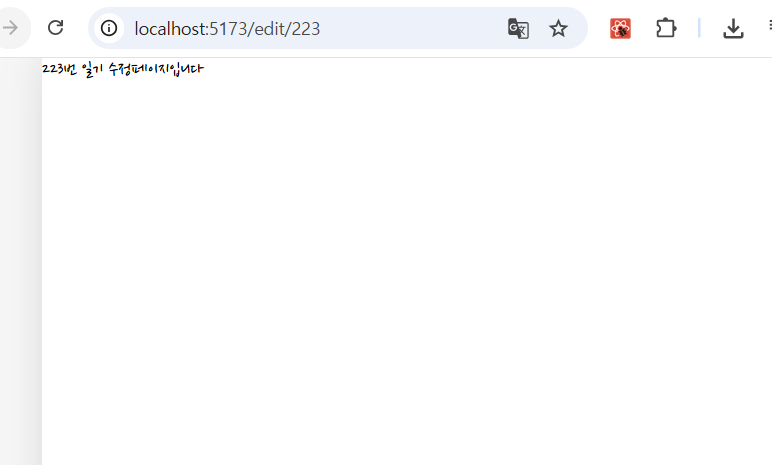
실행화면입니다.
12.9) 일기 관리 기능 구현하기 2
App.jsx
import "./App.css";
import { useReducer, useRef, createContext } from "react";
import { Routes, Route } from "react-router-dom";
import Home from "./pages/Home";
import Diary from "./pages/Diary";
import New from "./pages/New";
import Edit from "./pages/Edit";
import Notfound from "./pages/Notfound";

const mockData = [
  {
    id: 1,
    createdDate: new Date().getTime(),
    emotionId: 1,
    content: "1번 일기 내용",
  },
  {
    id: 2,
    createdDate: new Date().getTime(),
    emotionId: 2,
    content: "2번 일기 내용",
  },
];

function reducer(state, action) {
  switch (action.type) {
    case "CREATE":
      return [action.data, ...state];
    case "UPDATE":
      return state.map((item) =>
        String(item.id) === String(action.data.id)
          ? action.data
          : item
      );
    case "DELETE":
      return state.filter(
        (item) => String(item.id) !== String(action.id)
      );
    default:
      return state;
  }
}

const DiaryStateContext = createContext();
const DiaryDispatchContext = createContext();

function App() {
  const [data, dispatch] = useReducer(reducer, mockData);
  const idRef = useRef(3);

  // 새로운 일기 추가
  const onCreate = (createdDate, emotionId, content) => {
    dispatch({
      type: "CREATE",
      data: {
        id: idRef.current++,
        createdDate,
        emotionId,
        content,
      },
    });
  };

  // 기존 일기 수정
  const onUpdate = (id, createdDate, emotionId, content) => {
    dispatch({
      type: "UPDATE",
      data: {
        id,
        createdDate,
        emotionId,
        content,
      },
    });
  };

  // 기존 일기 삭제
  const onDelete = (id) => {
    dispatch({
      type: "DELETE",
      id,
    });
  };

  return (
    <>
      <button
        onClick={() => {
          onCreate(new Date().getTime(), 1, "Hello");
        }}
      >
        일기 추가 테스트
      </button>

      <button
        onClick={() => {
          onUpdate(1, new Date().getTime(), 3, "수정된 일기입니다");
        }}
      >
        일기 수정 테스트
      </button>

      <button
        onClick={() => {
          onDelete(1);
        }}
      >
        일기 삭제 테스트
      </button>

      <DiaryStateContext.Provider value={data}>
        <DiaryDispatchContext.Provider
          value={{
            onCreate,
            onUpdate,
            onDelete,
          }}
        >
          <Routes>
            <Route path="/" element={<Home />} />
            <Route path="/new" element={<New />} />
            <Route path="/diary/:id" element={<Diary />} />
            <Route path="/edit/:id" element={<Edit />} />
            <Route path="*" element={<Notfound />} />
          </Routes>
        </DiaryDispatchContext.Provider>
      </DiaryStateContext.Provider>
    </>
  );
}

export default App;
- useReducer는 mockData(기본 일기 데이터)를 상태로 관리하며, CREATE, UPDATE, DELETE 액션을 처리함.
- reducer 내부에서 action의 type에 따라 새 일기를 추가하거나, 기존 일기를 수정·삭제함.
- useRef(3)는 새로 추가될 일기의 id를 자동 증가시키기 위한 id 관리 변수임.
- onCreate, onUpdate, onDelete 함수는 각각 dispatch를 통해 reducer에 명령을 전달함.
- DiaryStateContext는 일기 목록 전체(data)를,
DiaryDispatchContext는 일기 조작 함수들(onCreate/onUpdate/onDelete)을 하위 컴포넌트에 제공함. - 이렇게 하면 Home, New, Edit, Diary 페이지가 props 없이도 Context를 통해 데이터 접근 가능.
- <Provider> 두 개로 Context를 감싸 모든 하위 Route 컴포넌트들이 접근할 수 있도록 설정함.
- 상단의 세 개 버튼은 실제 데이터 추가/수정/삭제가 잘 작동하는지 테스트용으로 만들어짐.
- reducer가 불변성을 유지하며 새 배열을 반환하기 때문에 React가 상태 변경을 인식함.
- 최종적으로 이 구조는 “하나의 중앙 상태 관리 시스템(Context + Reducer)”을 완성하여, 일기장 전역에서 일관된 데이터 흐름을 유지함.
실행화면입니다.
